Remove AI Agent from Teams: A Practical Guide
Learn a precise, repeatable method to remove an AI agent from Microsoft Teams, revoke access, and audit the process. Ai Agent Ops shares best practices for clean removal and policy hardening.


According to Ai Agent Ops, to remove an AI agent from Teams you identify the bot in Apps, disable it, and revoke its permissions, then delete the integration from the admin center. Next, audit channels to confirm removal and update policies to prevent reinstallation. Follow a documented checklist to reduce mistakes and ensure all teams are cleanly disengaged.
What counts as an AI agent in Teams?
In Microsoft Teams, an AI agent goes beyond a simple bot. It may be an integrated automation that prompts responses, processes data, or initiates workflows across channels and teams. These agents can be implemented as apps, bots, or connectors with elevated permissions to read messages, post content, or trigger external services. For the purpose of removal, distinguish between two categories: (1) user-installed agents that reside in a single team and (2) tenant-wide agents installed by admins. Understanding this scope helps prevent orphaned permissions and ensures you’re removing the correct integration. When you search for agents, you’ll often find them under the Apps or Manage Apps sections in the Teams admin center. As you proceed, keep your goal in mind: remove the artifact, revoke access, and update governance to minimize future friction. If the agent is tied to compliance workflows or security alerts, coordinate with security and governance teams to mitigate any residual risk. The aim is a clean state where no automated interactions remain unless explicitly re-enabled with proper oversight.
Planning your removal: inventory, impact, and policy alignment
Before you click any remove button, map every occurrence of the AI agent across your Teams environment. Create an inventory that lists: agent name, tenant ID(s), associated teams or channels, data scopes (what it can read or write), and any connected apps or services. Evaluate the impact on active workflows and notify stakeholders who rely on the bot. This is a critical governance step because removing an agent without notifying owners can disrupt critical processes. Use this planning phase to align with existing policies on data retention, access control, and change management. As Ai Agent Ops emphasizes, framing removal as a policy-based activity improves accountability and reduces backsliding. Maintain a changelog and prepare a rollback plan if a removal unexpectedly interrupts business operations.
Prerequisites and inventory: what to prepare
To remove an AI agent safely, you’ll need administrative access to the Teams admin center, exportable app inventories, and documented approval from the responsible owner. Ensure you have:
- Global admin or Teams service admin rights
- A current list of installed AI agents and their scope
- Access to audit logs and change management templates
- A clear rollback or contingency plan in case removal affects workflows Having these items ready minimizes delays and reduces the risk of leaving behind stale permissions. If you’re unsure about a particular agent’s scope, pause the removal and consult with security or privacy teams. Documentation is your best ally here; it ensures repeatable success across environments and makes compliance audits smoother.
Why remove vs. disable: key considerations
Disabling an agent is not always equivalent to removal. Disabling might prevent ongoing actions, but stale permissions could still exist, allowing reactivation by mistake. Full removal eliminates the integration and revokes associated permissions, reducing the risk of silent reinstallation. Consider the following:
- Is the agent critical to any ongoing business process?
- Are there backup processes or parallel workflows that would be affected?
- Will removal require changes to data retention or access policies? If the agent is tied to sensitive data, coordinate with security teams to ensure there are no lingering access paths. Ai Agent Ops recommends using feature-flag-like controls in policy documents so future re-enablement is deliberate and auditable.
Step-by-step overview: what the actual removal involves
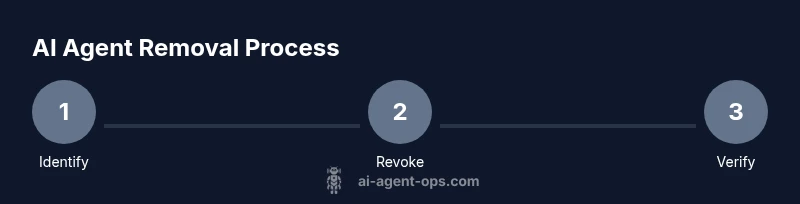
At a high level, removing an AI agent from Teams involves (1) identifying all locations where the agent exists, (2) revoking app permissions in the Teams admin center, (3) deleting the app or bot from tenant and team scopes, (4) validating that no residual messages or events are still triggering actions, and (5) updating governance to prevent silent reinstalls. The exact menus may vary slightly by tenant configuration, but the sequence remains consistent: locate, revoke, remove, verify, and govern. By following this order, you minimize the chance of orphaned permissions and ensure a verifiable end state that your security and compliance teams will thank you for.
Post-removal verification: checklists and audits
Verification is essential. After removing the AI agent, run through a cross-team audit to confirm no active channels reference the app, no scheduled tasks remain, and no webhooks still point to external services. Review audit logs for recent access attempts and confirm that no new installations are pending approval. Update your change-management records to reflect the removal and assign responsibility for ongoing governance.
Ai Agent Ops perspective: best practices and wrap-up
From Ai Agent Ops’ viewpoint, removal should be codified as a standard operation. Create a reusable playbook, assign owners, and integrate the procedure into your security and governance framework. Train admins on recognizing dependent workflows and ensure there is an approved rollback plan. The goal is not just to remove an AI agent but to strengthen your organization’s agent lifecycle management. Regular reviews of third-party integrations help prevent future issues and maintain a secure, efficient Teams environment.
Tools & Materials
- Microsoft Teams admin center access(Must have global admin or Teams service admin role)
- Current app inventory export(List all AI agents and their scopes)
- Audit logs access(Review recent changes and access events)
- Change-management template(Document approvals, rollback plan, and communications)
- Owner contact list(Coordinate with stakeholders if needed)
Steps
Estimated time: 30-60 minutes
- 1
Identify AI agent locations
Search the Apps list in the Teams admin center and in tenant-wide app catalogs to locate every instance of the AI agent. Map the teams and channels where it’s present to avoid missing any location.
Tip: Use a spreadsheet to tag each instance with its owner and data scope. - 2
Revoke permissions and disable
In the admin center, revoke permissions granted to the agent and disable its ability to authorize actions. This step prevents new or repeat actions while you prepare for removal.
Tip: Take screenshots of the permission set before removal for audit records. - 3
Delete the agent integration
Remove the app/bot from tenant-level and per-team scopes. Confirm that there are no remaining references in apps, connectors, or workflows.
Tip: Perform deletion in both the Apps tab and any connected service dashboards. - 4
Verify removal across channels
Check for residual messages, webhooks, or automated tasks that might still fire. Run test chats or workflows where safe to ensure the agent no longer responds.
Tip: Schedule a post-removal validation window with stakeholders. - 5
Document and govern
Update your change-log and governance policies to require approval for any future AI agent installations. Establish a monitoring plan to catch reinstallation attempts.
Tip: Link the removal to policy changes for ongoing compliance.
Questions & Answers
What counts as an AI agent in Teams?
An AI agent in Teams includes bots, connectors, or apps that automate tasks, read or post messages, or trigger external services. Identify all such integrations before removal to ensure a clean disengagement.
AI agents in Teams include bots and apps that automate tasks. Identify all such integrations before removal to ensure a clean disengagement.
Can I pause an agent instead of removing it?
Pausing may stop actions temporarily, but it can leave permissions active. If you don’t anticipate reactivation, removal is the safer long-term option and reduces risk.
Pausing might leave permissions active. Removal is safer for a long-term solution.
What permissions must be revoked?
Revoke all read/write access, webhook triggers, and any application permissions tied to data sources. After removal, confirm there are no active tokens or service principals.
Revoke all read/write access and any tokens tied to the agent.
How do I prevent reinstallation?
Update governance policies, restrict app installation at the tenant level, and require approvals for new agents. Regularly review app permissions and enforce change-management controls.
Tighten policies and require approvals to prevent accidental reinstall.
What should I audit after removal?
Review change logs, admin actions, and audit trails for the removal period. Confirm no residual automation triggers remain and that monitored data access is aligned with policy.
Check change logs and audit trails to verify removal.
Watch Video
Key Takeaways
- Identify all AI agent instances across Teams.
- Revoke permissions before deletion to prevent reactivation.
- Verify removal with a cross-team audit and updated policies.
- Document changes for compliance and future governance.