How to Add an AI Agent in Teams
Learn how to add an AI agent in Teams with practical steps, prerequisites, deployment, and governance for developers, product teams, and business leaders exploring AI agent workflows inside Microsoft Teams.


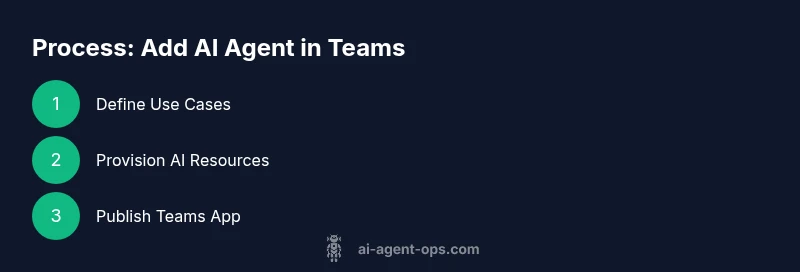
To add an AI agent in Teams, create an app package that hosts a bot or cognitive service, then publish or sideload it for your organization. Connect the agent to Teams using the Bot Framework or Power Platform, configure authentication, channels, and scopes, and enable AI capabilities through your chosen provider (Azure OpenAI, OpenAI, or custom models). Test in a dev tenant before rollout to production.
Overview: Why integrate an AI agent in Teams?
Integrating an AI agent in Teams transforms collaboration by acting as a smart assistant in channels, chats, and meetings. Teams users can ask the agent to draft messages, summarize conversations, fetch data from integrated services, or run automation tasks without leaving the app. From product teams to field engineers, the ability to access AI-powered insights where work happens reduces context switching and speeds decision cycles. According to Ai Agent Ops, early adopters focus on clear use cases, defined data boundaries, and governance to avoid data leakage. This article explains how to add an AI agent in Teams with practical steps, starting from planning to deployment. It also covers risk considerations and how to measure success. By the end, you’ll know which architecture options fit your needs and how to test and iterate in a safe development environment.
Prerequisites and planning
Before diving into the build, map your goals and list required resources. Ensure you have Microsoft 365 Tenant with Teams enabled, appropriate admin permissions, and an Azure subscription or AI service plan. Consider data residency and compliance requirements, as well as user adoption goals. Prepare a simple use-case catalog (e.g., meeting summaries, task creation, data lookup) to guide the design. Ai Agent Ops recommends aligning technical scope with business outcomes and setting guardrails to protect sensitive information. Having a clear plan saves time during implementation and helps you measure impact later.
Architecture options for Teams AI agents
There are multiple viable paths to add an AI agent in Teams, depending on your constraints and skills. You can use the Bot Framework to build a chat bot that lives in Teams, leverage Power Platform to connect AI capabilities to Teams, or combine agent orchestration with custom connectors. For developers, a modular approach that decouples the AI model from the Teams UI makes iteration faster. For no-code teams, integrating cloud connectors and prebuilt AI actions can speed up delivery while maintaining governance. Ai Agent Ops notes that choosing the right architecture early reduces complexity and makes maintenance easier in production.
Step 1: Define your AI agent use cases
Start with concrete, measurable use cases for the agent within Teams. Examples include drafting replies, summarizing channel activity, extracting action items from meetings, or pulling data from connected apps. Write user stories with acceptance criteria and success metrics. This helps prioritize work and frames the technical requirements, such as data sources, authentication, and latency targets. Include a quick mock-up of typical interactions to guide your design and UX decisions.
Step 2: Create your AI agent service (model and endpoints)
Set up your AI service, whether it’s a commercial provider (Azure OpenAI, OpenAI) or a custom model hosted behind an API. Create endpoints for chat, completion, and any specialized functions (data lookup, document analysis, etc.). Implement input validation, rate limiting, and error handling. Create test prompts and guardrails to steer the agent toward desired behavior. Document API contracts and versioning so future updates don’t break existing flows. Ai Agent Ops emphasizes transparent data flows and clear ownership of data sources for accountability.
Step 3: Build your Teams app manifest and bot registration
Register a Teams app and create a bot registration that corresponds to your AI service. Generate an App ID, secret, and required permissions for chat, meeting, and messaging extensions. Define the bot's scopes, messaging endpoints, and event handlers in the manifest. Provide clear onboarding copy and privacy notices so users understand how their data is used. This step establishes the bridge between your AI agent service and the Teams client.
Step 4: Implement authentication, authorization, and data access
Implement OAuth2 or SSO where appropriate to control who can access the AI agent and what data it can see. Use least-privilege permissions and separate data access by user role. Safeguard API keys and secrets with secure vaults and rotate credentials regularly. Establish auditing for agent actions and data access events to support governance and compliance requirements. This helps prevent unauthorized access and data leakage.
Step 5: Connect UI flows and prompts to Teams channels
Design the user experience for Teams interactions with the AI agent. Create message handlers, adaptive cards, or compose extensions to guide users. Define default prompts, fallback behavior, and error messages. Include an escalation path to a human agent for complex tasks. Linking the UI to the agent’s API ensures quick, reliable responses and consistent behavior across chats and channels.
Step 6: Package, sign, and publish the Teams app
Package the Teams app with its manifest and resources, then sign and distribute it to your organization. Decide between publishing to the Teams App Store for your org or sideloading for a controlled pilot. Ensure you’ve tested all flows and that the app meets security and privacy requirements. This step makes the AI agent available in the Teams client for end users.
Step 7: Test in a development tenant and gather feedback
Use a dedicated development or sandbox tenant to validate functionality, performance, and data handling. Run end-to-end tests that cover typical user journeys and edge cases. Collect feedback from pilot users and stakeholders, and track usage, latency, and error rates. Iterate on prompts, UI, and safety guardrails based on real-world data.
Step 8: Security, privacy, and governance considerations
Document data flows, classify data, and apply retention policies. Implement encryption in transit and at rest, monitor for data exfiltration, and enforce least-privilege access. Prepare a privacy notice for users and ensure compliance with applicable regulations. Regularly review permissions and audit logs to detect anomalies.
Step 9: Rollout, monitoring, and ongoing maintenance
Plan a phased rollout with scaling milestones and observed KPIs. Set up telemetry for usage, latency, success rate, and user satisfaction. Establish a maintenance calendar for model updates, prompt tuning, and dependency upgrades. Prepare incident response playbooks to handle outages or problematic outputs.
Step 10: Plan updates and continuous improvement
Treat the AI agent as a living product. Schedule regular reviews to refine prompts, expand use cases, and improve governance. Gather user feedback and performance data to prioritize enhancements. Keep stakeholders informed about improvements and win-backs from earlier pilots.
Tools & Materials
- Microsoft 365 tenant with Teams enabled(Admin access recommended for app registration and policy setup)
- Azure subscription or AI service plan(Needed for AI model hosting and endpoints (Azure OpenAI, Cognitive Services))
- Teams app manifest tooling (App Studio or manual manifest)(For registering the bot and packaging the Teams app)
- Secret storage and secret rotation mechanism(Use Azure Key Vault or equivalent for keys/secrets)
- Developer workspace (VS Code or IDE)(Helpful for coding and testing prompts but optional with no-code paths)
Steps
Estimated time: 2-4 hours
- 1
Set up AI resources
Provision the AI service resources and create endpoints for chat, completion, and any domain-specific actions. Validate latency and access controls. This step lays the foundation for how the agent will process inputs and return results in Teams.
Tip: Document API endpoints and versioning to simplify future updates. - 2
Create AI agent service
Develop or configure the AI model, including prompts, safety guardrails, and task-specific capabilities (like data lookup). Establish a test harness to verify behavior against common user queries.
Tip: Use representative prompts and guardrails to prevent leakage of sensitive information. - 3
Register Teams app
Register a Teams app and create a bot registration that points to your AI service endpoint. Capture the App ID and set up necessary permissions for chat and meetings.
Tip: Keep App ID and secret in a secure vault; rotate credentials periodically. - 4
Define scopes and permissions
Define least-privilege permissions for the app, including data access boundaries. Document which data sources the agent may query and under what conditions.
Tip: Avoid broad data access; prefer scoped endpoints per use case. - 5
Connect UI flows to Teams
Implement the user interface in Teams (chat, tabs, or messaging extensions) that routes messages to the AI agent and renders responses. Include fallback paths for ambiguous inputs.
Tip: Provide clear error messages and an escalation path to human support. - 6
Add prompts and policies
Create standardized prompts and policies that guide agent behavior, tone, and decision boundaries. Include examples for common tasks to ensure consistency across conversations.
Tip: Test prompts with diverse user samples to reduce bias and misinterpretation. - 7
Package and publish the app
Assemble the manifest and resources into a deployable Teams app package. Decide between org-wide publish or controlled sideload for pilots.
Tip: Validate the package signature and ensure compliance checks pass. - 8
Test in development tenant
Launch the app in a dev tenant to validate end-to-end flows, performance, and data handling. Collect metrics and user feedback to guide adjustments.
Tip: Run load tests to simulate peak usage and identify bottlenecks. - 9
Security and governance review
Perform a security review covering access controls, data retention, and incident response planning. Update policies based on findings.
Tip: Document incident response steps and notify stakeholders of critical changes. - 10
Monitor and iterate
Set up monitoring dashboards for usage, latency, and success rates. Plan regular iterations to improve prompts, expand use cases, and refine governance.
Tip: Prioritize changes based on impact and user feedback.
Questions & Answers
What are the prerequisites to add an AI agent in Teams?
You need a Microsoft 365 tenant with Teams enabled, an Azure subscription for hosting AI services, and appropriate admin permissions to register apps and configure policies. Plan data governance and adoption goals before starting.
Prerequisites include a Teams-enabled tenant, an Azure AI service plan, and admin access to register apps and set policies.
Can I use no-code tools to add an AI agent in Teams?
Yes. No-code and low-code platforms can connect Teams to AI services via connectors and workflows. This is ideal for pilots and smaller teams, while maintaining governance through policy settings.
Yes, no-code options let you connect Teams to AI services through connectors for faster pilots.
What AI providers are supported for Teams agents?
Common choices include Azure OpenAI and other cloud-based AI endpoints. The agent can use prompts and policies to leverage these services, with careful handling of data governance.
Azure OpenAI or other cloud AI endpoints are common, but ensure you manage data handling and policies.
How do I test the AI agent in Teams?
Use a dedicated development tenant to simulate real user interactions, measure latency, and validate data access. Collect feedback from pilot users and adjust prompts and flows accordingly.
Test in a dedicated development tenant, then adjust based on user feedback.
Is user data secure when using AI in Teams?
Data security requires encryption, restricted access, and clear data retention policies. Audit logs and incident response plans help protect user information.
Security comes from encryption, access controls, and clear data retention policies.
How do I update or revoke access to the AI agent?
Manage permissions via your identity provider and Teams app policies. Rotate secrets regularly and remove access for users who no longer need it.
Control access with identity provider policies and rotate secrets regularly.
Watch Video
Key Takeaways
- Define clear use cases before building
- Choose architecture that matches team skills
- Secure data with proper permissions and vaults
- Test thoroughly in a dev tenant before production
- Monitor performance and iterate with user feedback