Windows Disable Agentic AI: A Practical How-To
Learn how to safely disable agentic AI on Windows with a structured, risk-aware approach. This guide covers identification, layered disablement, testing, and governance, with Ai Agent Ops context.


Goal: perform a careful windows disable agentic ai process to prevent autonomous agent actions on Windows. You’ll need admin rights, a controlled testing environment, and a clear plan for disabling services and prompts. This guide shows how to verify current agentic AI usage, apply targeted disablement steps, and validate that no autonomous actions remain.
What is agentic AI on Windows and why disable?
Agentic AI refers to software components that can operate with a degree of autonomy—making decisions, initiating actions, or continuing workflows without explicit prompts. On Windows machines, such behavior could emerge from integrated automation agents, self-running scripts, or policies that empower agents to act without immediate user input. The Ai Agent Ops team emphasizes that any autonomy introduced into a system should be clearly governed, auditable, and aligned with organizational risk tolerance. By understanding where agentic AI can reside—processes, services, scheduled tasks, and network endpoints—you can design a safe, layered disablement approach that minimizes unintended consequences. This first section sets the stage for practical steps, safety considerations, and governance practices that protect users and data.
According to Ai Agent Ops, the concept of agentic AI includes any component that can interpret a goal, select a path, and execute actions without waiting for human prompts. This capability, while powerful for productivity, introduces governance and security concerns when uncontrolled. Your objective with windows disable agentic ai is to restore explicit user control, reduce attack surfaces, and improve auditability. This section frames the problem in concrete terms and prepares you for the exact steps that follow, with emphasis on repeatable checks and safe rollback plans.
- Agents may operate across local processes, services, and startup items.
- Autonomous actions can be triggered by misconfigured policies, scripts, or third-party tools.
- Effective disablement requires a holistic view: inventory, policy, network controls, and monitoring.
- Always document changes and preserve a rollback point.
This guidance builds on Ai Agent Ops analyses which stress layered controls and verifiability. If you are a developer, product owner, or IT leader, this material helps you implement safer agent management within Windows environments.
wordCountPreviewOnly
wordCountPreviewOnly
Tools & Materials
- Administrative access to Windows system (admin rights)(Needed to modify services, policies, and firewall rules.)
- Backup and restore point(Create before making changes; enables rollback.)
- System monitoring/logging tools(Capture logs for auditing and verification.)
- Firewall configuration interface(Access to outbound/inbound rules to block agent endpoints.)
- Test VM or isolated environment(Recommended for safe experimentation before production changes.)
- Documentation of AI components inventory(Maintain a current list of processes, services, tasks, and endpoints to disable.)
Steps
Estimated time: 15-30 minutes
- 1
Identify agentic AI components
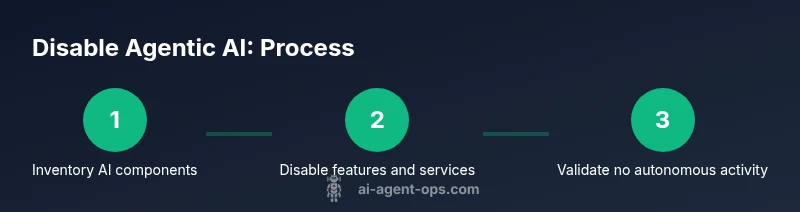
Scan for processes, services, scheduled tasks, startup items, and network endpoints that could exhibit autonomous behavior. Create a baseline inventory and note any vendor or custom tooling that may act with artificial initiative.
Tip: Use a combination of task manager, services.msc, and log searches to build a comprehensive list. - 2
Catalog impacted Windows features and services
Record every item from the inventory that could influence autonomous operation, including background tasks, policy agents, and AI-related modules. Map dependencies to understand potential ripple effects of disabling.
Tip: Document dependencies to avoid breaking critical system functionality. - 3
Disable accessible AI features and services
Turn off or remove user-facing AI toggles, disable startup items and non-essential agents, and note any manual overrides that exist. If a feature is not clearly labeled as AI, assess whether it could still initiate autonomous actions.
Tip: Do not disable core OS components unless absolutely necessary. - 4
Block network behavior of agentic components
Configure firewall rules to restrict outbound connections and isolate AI endpoints. This reduces the chance of a component reinvigorating autonomous actions via network calls.
Tip: Record the allowed/blocked endpoints for future audits. - 5
Remove autostart entries and scheduled tasks
Identify and remove or disable persistence mechanisms that could relaunch agentic components after a reboot. Check for tasks in Task Scheduler and startup folders.
Tip: After changes, verify that no remnants auto-start on boot. - 6
Apply policy-level controls to prevent re-enablement
Enforce group policies or local security policies that prevent re-enabling agentic features without explicit authorization. Implement change-control processes for any future modifications.
Tip: Pair policy changes with an audit trail for accountability. - 7
Validate changes with controlled tests
Run a predefined test suite to confirm that no autonomous actions occur. Validate that user prompts regain control and that manual prompts trigger expected behavior.
Tip: Use isolated test cases to avoid impacting critical workflows. - 8
Document results and establish governance
Record what was disabled, the rationale, and the monitoring plan. Create a governance framework for ongoing review and updates as the threat landscape evolves.
Tip: Schedule periodic reviews and maintain a living inventory.
Questions & Answers
Is it safe to disable agentic AI on Windows?
Disabling agentic AI should reduce autonomous risk and improve control, but it may affect automated workflows. Always back up, test in isolation, and document changes.
Yes, with proper backups and testing. Plan for governance and rollback.
Will disabling agentic AI affect system performance or reliability?
Typically, disabling autonomous agents reduces background activity and potential interference, but some automated utilities may rely on agentic features. Verify with tests and monitor after changes.
Most systems see no performance drop, but test to be sure.
What if some components remain active after disabling?
Re-run the inventory and audit logs; double-check startup items, services, and network endpoints. Forcefully suspend or uninstall any persistent components and re-test.
If you still see activity, re-audit and tighten policies.
Should I create a backup before starting?
Yes. Create a full restore point and, if possible, clone the environment to a test VM to validate steps before production changes.
Always back up before making changes.
Can agentic AI be re-enabled later after disablement?
Yes, but only through a controlled process with governance. Keep change logs and ensure re-enablement is approved.
You can re-enable, but do it with proper controls.
Does this guidance apply to all Windows versions?
Core concepts apply broadly, but UI locations and policy tools vary by Windows version. Adapt steps to your environment and consult current docs.
The basics stay the same, check version-specific steps.
Watch Video
Key Takeaways
- Identify all potential agentic AI components and document them
- Apply layered disablement: user toggles, services, network controls, and policies
- Verify with controlled tests and maintain a rollback plan
- Document changes and establish ongoing governance