How to Turn Off AI Agent on Instagram
Learn how to disable the AI agent on Instagram with a clear, step-by-step process. This guide covers prerequisites, exact paths, verification, and governance considerations for developers and teams.


By turning off the AI agent on Instagram you regain manual control over automated features, including responses and recommendations. This guide walks you through checking for AI-driven tools, disabling them, and verifying the change across devices. You’ll learn where to look in the app, what to expect after turning off, and how to re-enable if needed.
What is an AI agent on Instagram and why you might want to turn it off
AI agents on social platforms like Instagram refer to automated assistants or bot-like features that can handle tasks such as replying to messages, suggesting content, or curating feed recommendations. In some cases these agents operate in the background, leveraging user data and interaction signals to optimize engagement. While AI agents can improve efficiency for businesses and creators, there are understandable reasons to turn them off: concerns about privacy and data sharing, unwanted automated responses, false positives in moderation, and a desire to maintain human-centric control over brand voice. For developers and leaders, understanding when and why to disable these agents is part of responsible agentic AI governance. According to Ai Agent Ops, organizations benefit from clear toggles, audit trails, and explicit user consent when managing agented AI in social apps. Keeping humans in the loop helps avoid miscommunication and protects user trust.
The decision to disable an AI agent isn’t about rejecting automation outright; it’s about aligning automation with your product goals, privacy requirements, and user expectations. When you disable AI agents, you’ll typically switch off automated replies, remove auto-suggestions, and stop any feature that iterates on your audience’s data without explicit human oversight. In practice, this means you’ll rely on manual moderation, human-crafted replies, and brand-aligned interventions to maintain a consistent voice across channels.
Prerequisites before disabling AI features
Before you begin the process, there are a few foundational steps that save time and reduce risk. First, confirm you have account access with the necessary permissions to adjust privacy or automation settings. Second, ensure your Instagram app is updated to the latest version so you can see the latest AI-related controls. Third, prepare a quick plan for what you’ll do after turning off the AI agent: who will monitor conversations, what response templates to use, and how you’ll document changes for governance.
Additionally, consider your data and security posture. If your organization relies on automation for customer interactions, establish a temporary fallback plan (e.g., canned replies) and ensure you can revert settings if needed. This aligns with best practices in agent management and helps avoid gaps in service during the transition. Ai Agent Ops recommends maintaining an auditable trail of changes so stakeholders can review why automation was paused or re-enabled later.
Noting where AI features reside in the app
Instagram’s AI-related controls are distributed across settings areas such as Privacy, Messaging, and sometimes Creator/Business tools. Depending on the app version and platform (iOS vs Android), you may encounter AI agent toggles under Privacy and Safety, Combatting Harassment, or Automated Features sections. If your organization uses connected services or third-party tools, review any account integrations as those can re-enable automation indirectly. The key is to locate any items labeled with automation, smart replies, or AI-assisted content curation and prepare for toggling them off individually. If you don’t see a dedicated AI switch, you may need to disable related features (auto-replies, suggested responses, or automated DMs) one by one.
Because app layouts vary by version, use the search feature in Settings to look for terms like “AI,” “automation,” “auto-reply,” or “agent.” If you’re working across multiple devices, verify settings on each device to ensure consistency in how the AI agent is managed.
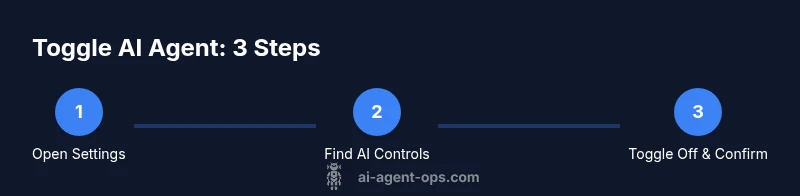
Step-by-step: how to turn off ai agent on instagram
This section provides a concise, platform-agnostic guide you can follow while referencing the detailed steps in the STEP-BY-STEP block. Start from the main Settings hub, locate any AI or automation controls, and carefully toggle them off. After you finish, review related privacy options to ensure no automated data sharing remains active. Finally, test a few interactions (DMs, comments, or content recommendations) to confirm that automation is truly paused and that human workflows remain in place.
If you encounter a mismatch between the on-screen text and what you expect, consider updating the app or reinstalling to ensure the latest options are visible. For teams, document the exact toggles changed and the date of changes for governance records.
Verifying the change and validating outcomes
Verification is essential to ensure the action took effect across all relevant surfaces. Log in on a second device, if possible, and confirm that auto-replies and AI-assisted prompts have ceased. Monitor inbound messages and engagement patterns for a day or two to spot any delayed automation effects or reappearing defaults. If you still observe AI-driven behavior, inspect linked apps and connected accounts for automated features you may have missed. Maintain a test log to capture what worked, what didn’t, and any edge cases. This process helps guard against accidental re-enablement and supports post-change audits.
From a governance perspective, share the results with your product and security teams to maintain transparency and cross-functional accountability. Ai Agent Ops emphasizes that a deliberate, audited approach to turning off AI agents reduces surprises and reinforces trust with users.
Security, privacy, and governance considerations
Disabling an AI agent should be part of a broader privacy-by-design strategy. Review data retention settings, data sharing permissions, and any analytics tied to AI-driven features. If you operate in regulated spaces or handle sensitive user data, ensure your changes comply with internal policies and external requirements. Document the rationale for disabling automation and the expected impact on user experience. Establish a plan for periodic reviews to decide whether AI features should remain off, be reconfigured, or be re-enabled with stricter controls. Ai Agent Ops’s governance guidance supports making such decisions with clear criteria and auditable records.
Finally, educate your team about responsible agent use. Provide training on recognizing automation boundaries, handling escalations manually, and maintaining a consistent, brand-aligned voice even when AI is paused.
Ai Agent Ops perspective, best practices, and next steps
From Ai Agent Ops, the recommended approach is to implement explicit, user-consented toggles for AI agents, maintain an accessible audit trail, and prioritize human oversight in critical workflows. If you’re experimenting with agentic AI, keep a documented change log and define success metrics for when automation should be paused or resumed. Consider adopting a lightweight governance framework that includes roles, review cycles, and rollback procedures. This helps teams balance the benefits of automation with the need for privacy, accuracy, and brand safety. The Ai Agent Ops team suggests starting with a controlled pilot, followed by a transparent rollout or rollback plan to minimize disruption and maximize learning.
Tools & Materials
- Smartphone or tablet with internet access(Ensure the device is signed into the intended Instagram account and updated to the latest OS.)
- Instagram app (latest version)(Update to access the newest AI controls and privacy options.)
- Account credentials (username/email and password)(Keep credentials secure; enable 2FA if available.)
- Stable internet connection(Prefer a reliable Wi-Fi network during changes to avoid interruptions.)
- Change log or governance checklist(Optional but recommended for auditing changes.)
Steps
Estimated time: 5-15 minutes
- 1
Open Instagram Settings
Open the Instagram app, go to your profile, tap the menu (three lines) and select Settings. This is the entry point for any privacy or automation controls. You’ll access the AI-related options from here.
Tip: If you don’t see Settings in the menu, ensure you’re on the latest app version or check the bottom-right profile tab for the gear icon. - 2
Locate AI or automation controls
Navigate to sections like Privacy, Security, or Automation. Look for terms such as AI, automation, auto-replies, smart replies, or agent. Depending on your device, these controls may live under different submenus.
Tip: Use the search within Settings and try keywords like 'AI', 'automation', or 'agent' to speed discovery. - 3
Toggle off AI agent features
Turn off the AI agent options you find (auto-replies, suggested responses, automated DMs). Confirm any prompts to apply changes. If there are multiple related toggles, disable them all to ensure silence from automation.
Tip: Take screenshots of the before state to help with post-change reviews and re-enable if needed. - 4
Review connected apps and data sharing
Check any linked apps or integrations that might re-enable automation. Update permissions so that automation features cannot reactivate without explicit approval.
Tip: Document which integrations were reviewed and how permissions were adjusted. - 5
Verify changes across devices
Sign in on at least one additional device and confirm AI automation remains disabled. Some features push toggles during sign-in; cross-device validation ensures consistency.
Tip: Repeat checks after app restarts or device reboots to confirm persistence. - 6
Test manual workflows
Send a few messages, create a post, and browse the feed to ensure no automated responses or suggestions appear. This helps you confirm the human-centric experience is restored.
Tip: If automation returns, re-check settings and look for deferred updates in the admin console or policy updates. - 7
Document for governance
Log the exact toggles changed, the dates, and who approved the change. This supports governance and future audits if automation needs to be revisited.
Tip: Keep a versioned changelog and share it with relevant stakeholders. - 8
Plan for re-enabling (if needed)
If you intend to re-enable automation later, set clear criteria and a rollback plan. Use phased testing to minimize risk and preserve brand voice.
Tip: Test with a small pilot group before a wider rollout.
Questions & Answers
What is an AI agent on Instagram?
An AI agent on Instagram refers to automated assistants or bots that perform tasks like auto-replies or content suggestions. Turning it off stops these automated interactions.
An AI agent is an automated helper in Instagram; turning it off stops automated interactions.
Will turning off AI agent affect direct message automation?
Yes. Disabling AI agents typically disables automated DMs and smart reply features, requiring manual responses instead.
Turning it off will disable automated DMs and smart replies, so you’ll reply manually.
Can I turn AI agent back on later?
Yes. You can re-enable AI agent features at any time from the same settings area, and you can reconfigure which automation remains active.
You can re-enable automation later from Settings.
Is turning off AI agent the same as turning off all automation?
Not necessarily. Some automation features may operate at platform level or under other integrations. Review all related toggles to be sure.
It may not cover every automation, so check other related toggles too.
Will disabling AI affect data privacy?
Disabling AI agents can reduce automated data processing tied to those features, but you should review overall privacy settings to fully control data sharing.
It can reduce automated data processing, but review all privacy settings.
What should I document for governance after turning off AI?
Record which toggles were changed, who approved the change, and the date. Include a plan for future re-enablement if applicable.
Document toggles, approvals, and dates for governance.
Watch Video
Key Takeaways
- Turn off AI agent features to regain manual control
- Verify changes across devices to ensure consistency
- Document toggles and governance decisions for audits
- Plan a controlled re-enablement if needed
- Prioritize privacy and brand safety in automation decisions