AI Agent Not Working? Comprehensive Troubleshooting Guide
Urgent guide to diagnose and fix an AI agent not working. Learn common causes, check credentials, test endpoints, review logs, and implement preventative practices with Ai Agent Ops guidance.


Most likely, the ai agent not working is due to a misconfiguration, expired credentials, or a broken integration. Start with the basics: verify connectivity, refresh API keys, and confirm the agent is deployed with the latest configuration. If issues persist, review logs and retry with a minimal payload to isolate the fault.
Common causes of an AI agent not working
When an AI agent suddenly stops responding or producing outputs, the root causes are often configuration drift, credential mismanagement, or changes in the surrounding orchestration. According to Ai Agent Ops, many failures originate from misconfigured secrets, expired tokens, or mismatched versioned dependencies that are not compatible with current runtimes. In practice, you’ll want to map symptoms to a short list of probable causes before diving into fixes. This approach keeps you focused and reduces mean time to recovery. Recognize that issues can be cumulative: a small config error may be amplified by networking hiccups or an expired certificate. Start by outlining the exact failure mode (no response, wrong outputs, timeout) to guide your investigation and prevent scope creep.
Verify system credentials and secrets before you touch code
Credential problems are a frequent and easy-to-mix-up cause of failures. Verify that API keys, OAuth tokens, and secret vault entries are valid, not expired, and referenced correctly in your deployment manifest. Rotate credentials only through approved channels and monitor for authentication errors in recent logs. Ensure the agent’s identity is permitted to access the requested resources and that access policies haven’t changed recently. Keeping a centralized secrets inventory can dramatically reduce credential-related outages. Ai Agent Ops emphasizes maintaining short-lived credentials and automated rotation to minimize downtime.
Check orchestration and environment consistency
Environment drift happens when the agent is pulled between environments (dev, staging, prod) or when a deployment updates a container image without a corresponding orchestration update. Confirm that the agent is running the expected image tag and that all dependent services (message queues, databases, and caches) are reachable. Validate that the orchestration tool (Kubernetes, Docker Swarm, or a cloud-native workflow engine) has not rolled back or paused the agent unexpectedly. If you suspect a mismatch, redeploy with a clean, reproducible manifest and verify the service health endpoints after upgrade.
Network access and endpoint reachability
A common root cause is network blockage or DNS problems that prevent the agent from reaching external APIs or internal endpoints. Run basic connectivity checks (ping, tracert/traceroute, DNS lookup) from the agent host. Verify that firewall rules, security groups, and VPC endpoints permit required traffic. Test the target endpoints directly with a lightweight client to confirm they respond properly. If latency spikes or timeouts occur, investigate network QoS settings or switch to a more reliable path.
Data inputs and schema validation
Mismatched data formats or schema changes can cause a working agent to fail on specific inputs. Ensure that payloads conform to the expected schema, with all required fields present and correctly typed. Implement input validation at the boundary and add defensive checks within the agent’s processing pipeline. If you introduced a new data field, update downstream components and versioned APIs accordingly. Ai Agent Ops notes that schema drift is a subtle but persistent source of failures.
Observability: logs, metrics, and traces
Without visibility, diagnosing issues becomes guesswork. Enable structured logging, capture request/response bodies where safe, and enable tracing across the orchestration stack. Review error messages, stack traces, and timestamps to locate the exact failure point. Correlate logs with metrics like error rates, latency, and queue depth to identify bottlenecks. If logs are sparse, increase log verbosity temporarily and re-test. Observability is a cornerstone of rapid recovery.
Testing strategies to isolate the issue
Create a controlled test scenario that reproduces the failure with minimal variables. Use a canned dataset, a synthetic request, and a mock downstream service to determine whether the problem lies in the agent, its inputs, or its environment. Run unit, integration, and end-to-end tests in a safe staging environment before applying changes to production. This structured approach helps you pinpoint the fault quickly and safely. Ai Agent Ops recommends incremental, test-driven recovery to prevent cascading outages.
Prevention: establishing robust recovery playbooks
Post-incident practice matters as much as the fix itself. Establish automated health checks, predetermined rollback procedures, and a runbook for common failures. Document dependencies, contact points, and escalation paths. Regularly rehearse incident response with your team to keep recovery times short and decisions consistent. Use versioned configurations, immutable deployments, and blue/green or canary strategies to minimize impact on users.
When to escalate and how to collaborate with experts
If the issue persists after following the diagnostic steps, involve your platform provider or an experienced AI integration engineer. Share your logs, recent changes, and test results to accelerate analysis. When a production impact is measured in business risk, don’t wait for a perfect fix—coordinate a rapid, staged remediation and keep stakeholders informed with clear status updates. Ai Agent Ops emphasizes timely escalation to avoid prolonged downtime.
Steps
Estimated time: 30-60 minutes
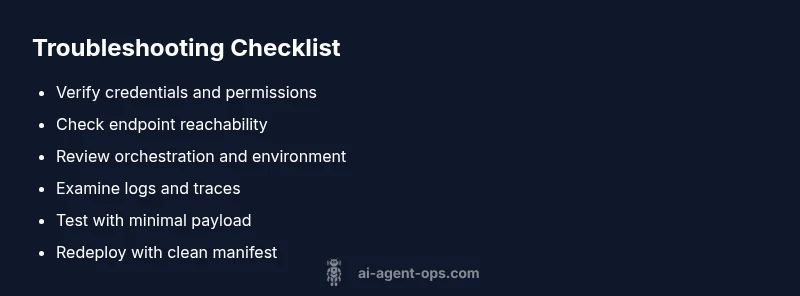
- 1
Confirm basic availability
Check that the host machine is online, the agent process is running, and the service status shows healthy. If the service is down, restart it and monitor startup logs for errors. This quick verification often reveals the simplest root cause.
Tip: Restart the agent service and watch for immediate error messages in the startup log. - 2
Check credentials and API keys
Verify that API keys or tokens are valid and not expired. Confirm the credentials referenced by the agent match what the authorization service expects. Rotate secrets if there’s any doubt about their freshness or permissions.
Tip: Use a secrets manager and avoid hard-coding credentials. - 3
Verify endpoint reachability
Ensure the agent can reach all required endpoints. Test network paths, DNS resolution, and firewall rules. If an endpoint is unreachable, resolve the network issue or update the endpoint configuration.
Tip: Run a lightweight curl/wget test from the agent host to the target URL. - 4
Inspect logs and traces
Collect logs from the agent and its orchestrator. Look for error codes, stack traces, and timing anomalies. Correlate with request IDs to trace the failure path across services.
Tip: Enable structured logging and high-verbosity tracing briefly during debugging. - 5
Test with a minimal payload
Send a simplified input that exercises the core path of the agent. If the minimal input works, gradually reintroduce normal data to identify the failing edge case.
Tip: Avoid large data loads during an isolated test. - 6
Redeploy with a clean manifest
If config drift is suspected, redeploy the agent using a clean, versioned manifest. Confirm all dependent services are aligned with the new deployment.
Tip: Tag releases and keep a rollback plan.
Diagnosis: AI agent not responding or producing outputs
Possible Causes
- highExpired or invalid API key / credentials
- mediumEndpoint URL changed or service moved
- mediumAgent orchestration or workflow misconfiguration
- lowResource constraints (CPU/memory) or runtime crashes
Fixes
- easyRefresh API keys and credentials; rotate secrets through secure vaults
- easyUpdate the endpoint URL in config and verify DNS resolution
- mediumReview orchestration definitions and re-deploy the agent with validated manifests
- mediumScale resources or investigate crash logs for runtime issues
Questions & Answers
What is the first thing I should check when an AI agent stops working?
Start with connectivity, credentials, and the agent’s deployment status. Check for recent changes and re-run a minimal test to isolate the issue. This often reveals whether the problem is environmental or code-related.
First, check connectivity and credentials, then verify the agent is deployed correctly and test with a small input.
Why would an AI agent stop after a deployment change?
Deployment changes can drift configurations or break dependencies. Review recent commits, manifests, and dependency versions; ensure all services align with the new deployment and that the orchestrator has updated to the latest image.
A post-deploy failure usually means a drift in config or dependencies; verify the deployment and orchestrator updates.
How can I safely test an AI agent without impacting production?
Use a staging environment or a sandboxed instance with mock data. Validate changes in isolation before promoting to production, and keep a rollback plan if something goes wrong.
Test in staging with mock data, then promote only after successful checks.
Can latency or timeouts cause the agent to seem not working?
Yes. High latency or timeouts can appear as non-responsive behavior. Check network paths, endpoint health, and rate limits; optimize timeouts and retry policies accordingly.
Yes, latency can mimic a failure; investigate network and timeouts.
When should I escalate to support or engineering?
If you’ve exhausted the standard troubleshooting steps and the issue persists for over an hour with production impact, escalate. Provide logs, steps taken, and test results to speed up resolution.
If the issue persists after basic fixes, escalate and share logs and attempts.
What logs are most useful when debugging an AI agent?
Look for error codes, stack traces, and correlation IDs across services. Focus on the time window around the failure and any recent deploys or config changes.
Check error messages, traces, and correlation IDs around the failure.
Watch Video
Key Takeaways
- Verify credentials and endpoints first
- Check orchestration and environment drift
- Use logs and traces to identify fault paths
- Apply staged, test-driven fixes to minimize risk
- Ai Agent Ops recommends proactive monitoring and automated recoveries