Enable AI Agent in VS Code: A Practical Step-by-Step Guide
Learn how to enable an AI agent in VS Code with practical steps, extensions, configuration, and governance practices for secure, productive agent-powered coding workflows.


Goal: enable an AI agent in VS Code to assist coding tasks, automate repetitive actions, and prototype agentic workflows. You’ll install a compatible extension, provision access to an AI service, configure workspace settings, and establish governance guards. This quick answer previews a detailed, step-by-step guide with security considerations, testing tips, and best practices for reliable automation.
What it means to enable an AI agent in VS Code
Enabling an AI agent in VS Code means integrating an AI-powered helper directly into your editor so it can suggest code, generate boilerplate, automate repetitive editing tasks, and assist with debugging within the development environment. This capability accelerates coding, reduces context switching, and supports rapid experimentation with agentic AI workflows. When done correctly, it blends seamless intelligence with editor-native controls, so you stay in your flow rather than bouncing between tools. For teams, this can standardize patterns for repetitive tasks and accelerate onboarding for new engineers. The core idea is to extend the editor with smart capabilities that actively augment human coding decisions, while still preserving control over changes and security.
Quick note on terminology
Different extensions and agent frameworks use slightly different terms (agent, assistant, bot, or agentive helper). Functionally, they perform similar roles: understand code, offer suggestions, execute actions in the editor, and integrate with external AI services. The exact capabilities depend on the extension and the AI provider you choose. This guide uses the umbrella term AI agent to cover extensions, APIs, and workflows that enable proactive in-editor automation.
Why now is a good time to enable AI agents in VS Code
AI agents can help with routine tasks like code formatting, documentation scaffolding, and even exploratory coding. For teams, agents can enforce coding standards, surface relevant library APIs, and accelerate error diagnosis. However, enabling agents also introduces considerations around data sharing, security, and governance. The Ai Agent Ops team emphasizes a balanced approach: start small, scope permissions tightly, and monitor usage to preserve trust and safety in your development environment.
Tools & Materials
- Visual Studio Code(Latest stable release, with recommended extensions enabled)
- AI agent extension or framework(Install from the VS Code Marketplace or official distribution)
- AI service API key or token(Obtainable from your AI provider; store securely)
- Node.js or runtime recommended by the extension(Check compatibility with your extension version)
- Git and a sample repository(Optional for version control and collaboration)
- Secure credential storage(Use VS Code secrets or OS keychain for keys/tokens)
- Sample project or codebase(A small project to exercise AI agent features)
Steps
Estimated time: 20-40 minutes
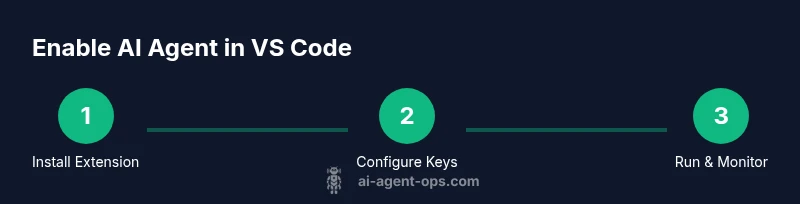
- 1
Install prerequisites
Ensure VS Code is up to date and that you have a compatible AI agent extension installed. Verify you can access the marketplace and that your network allows external API calls. This step sets the foundation for a smooth integration.
Tip: Check extension compatibility notes and confirm your workspace uses a supported Node.js runtime. - 2
Acquire and secure AI service credentials
Register for the AI service you plan to use and generate an API key or token. Store this credential securely in VS Code secret storage or your OS keychain, and avoid embedding keys in code or config files.
Tip: Use least-privilege access and rotate keys periodically; prefer scoped tokens if available. - 3
Configure the extension settings
Open settings for the AI agent extension and input your API key, endpoint URLs, and any workspace-scoped preferences. Customize defaults such as code suggestions, snippet length, and the agent's permission boundaries.
Tip: Enable per-project settings to isolate credentials and behavior per repository. - 4
Prepare a test project
Create or clone a small repository with representative code. This provides a safe environment to experiment with the agent’s capabilities without impacting production code.
Tip: Include a README with typical tasks you want the agent to assist with to guide testing. - 5
Run, observe, and refine
Activate the AI agent in the editor and perform targeted tasks. Watch for suggested changes, verify accuracy, and adjust prompts or settings to reduce noise and improve relevance.
Tip: Keep a watchful eye on automated edits and review them before merging. - 6
Governance, logging, and maintenance
Set up basic logging for agent actions, establish data handling policies, and document how to revoke access if needed. Plan regular reviews to maintain security and alignment with team standards.
Tip: Document a rollback plan and maintain an up-to-date inventory of credentials.
Questions & Answers
What is an AI agent in VS Code?
An AI agent in VS Code is an AI-powered helper that suggests code, generates snippets, and automates editor tasks within the IDE. It connects to AI services via extensions and supports interactive workflows.
An AI agent in VS Code is an AI-powered helper inside the editor that suggests code and automates tasks.
Which extensions support AI agents in VS Code?
There are multiple extensions and frameworks that integrate AI capabilities into VS Code, offering code generation, chat, and automation features. Choose extensions with solid documentation and clear security controls.
There are several extensions that bring AI agents into VS Code; look for good docs and security features.
Do I need an API key to enable AI agents in VS Code?
Yes, most AI agents require credentials to access external AI services. You typically provide an API key or token through extension settings, with governance practices to manage access.
Usually you need an API key or token in the extension settings to connect to AI services.
Is running AI agents locally in VS Code safe?
Local execution can be safe if the agent runs in sandboxed processes and data is handled securely. Follow best practices like data minimization, auditing, and restricted permissions.
Local execution can be safe if you sandbox the agent and monitor data access.
Can I use AI agents across multiple repositories?
Yes, but you’ll need consistent environments and secure key management. Use workspace settings, version control safeguards, and standardized prompts to ensure predictable behavior.
You can use AI agents across repos if you manage settings and keys securely.
What are common mistakes when enabling AI agents in VS Code?
Common pitfalls include exposing API keys, skipping governance, and failing to review automated edits. Start with scoped access, clear documentation, and a rollback plan.
Common mistakes include exposing keys and skipping governance; guard with controls.
Watch Video
Key Takeaways
- Define a focused use case before enabling the AI agent in VS Code.
- Secure credentials and apply least-privilege access from day one.
- Test in a dedicated workspace and review agent output carefully.
- Implement governance and logging to monitor agent activity.